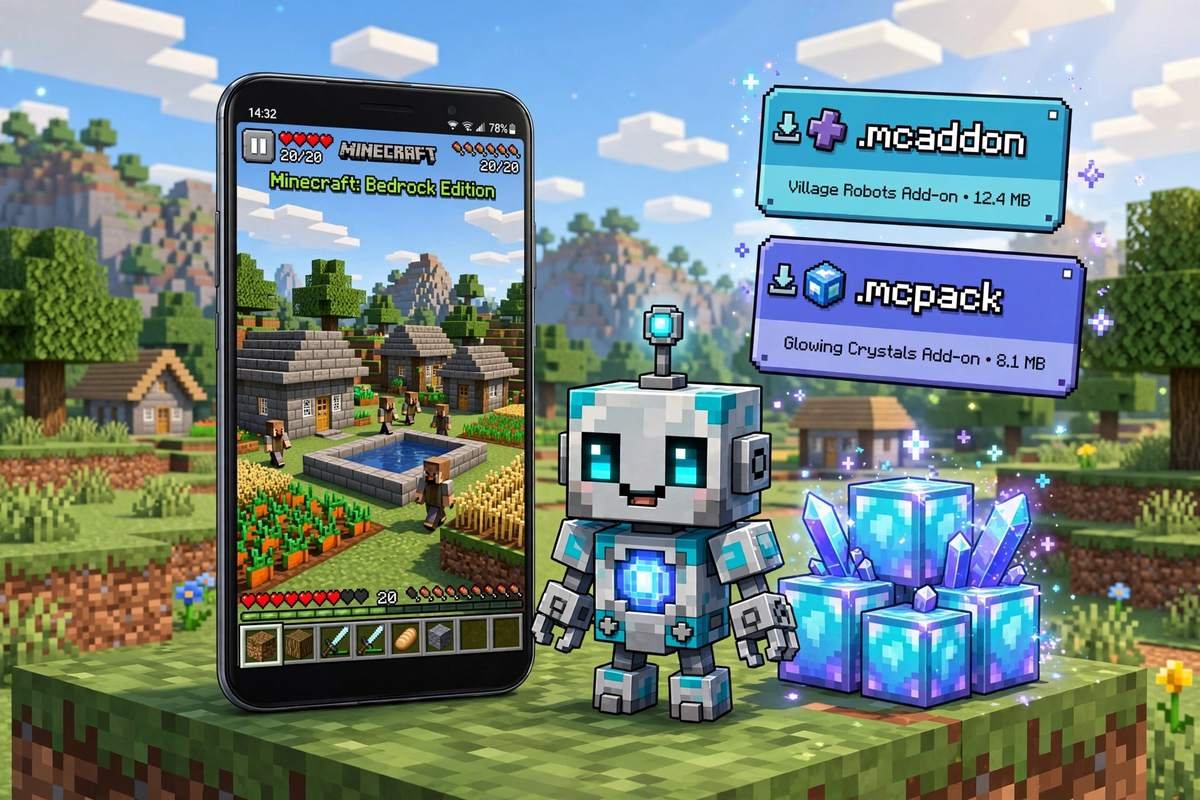
Minecraft Addons: How to Install .mcaddon Files on Android (2026)
New mobs, new weapons, working furniture, extra blocks, quality-of-life tools — on Bedrock, all of that arrives through minecraft addons. An add-on is the official, Mojang-supported way to change how Minecraft behaves on your phone, and installing one usually takes less than a minute: download a file, tap it, turn it on in your world.
The confusion starts with the file names (.mcaddon, .mcpack, .mcworld, .zip…), with add-ons that import fine but never appear in the world, and with warnings about achievements that nobody explains. This guide untangles all of it: what add-ons really are, how they differ from Java mods, where to download them safely, the exact install and activation steps for Android, and how to fix the errors everyone runs into.
What Is a Minecraft Add-On, Exactly?
Under the hood, almost every add-on is made of two halves:
- A resource pack — the looks and sounds: textures, models, animations, music, and interface changes.
- A behavior pack — the rules: how mobs act, what items do, loot tables, recipes, and — in modern add-ons — custom scripts that add features Mojang never built in.
An add-on that only changes appearance ships as a resource pack on its own. Anything that adds a new creature, a working machine, or a new gameplay system needs the behavior pack, and usually a matching resource pack so the new content doesn’t look invisible or broken.
This is also why Bedrock add-ons are not the same as Java mods, even though players use the words interchangeably:
| Bedrock add-ons | Java mods | |
|---|---|---|
| Platform | Bedrock (Android, iOS, Windows, console) | Java Edition on PC only |
| File types | .mcaddon, .mcpack | .jar files |
| Needs a loader? | No — built into the game | Yes — Forge, Fabric, or similar |
| Install method | Tap the file, activate in world settings | Install loader, drop files in a mods folder |
If you play on a phone, add-ons are your version of modding — no loader, no root, no PC required. Our broader Minecraft mods guide explains the Java side and how the two ecosystems compare.
The File Types, Decoded
Everything you download for Bedrock customization uses one of a few extensions. Knowing which is which prevents most install failures:
| File | What it is | What to do with it |
|---|---|---|
| .mcpack | A single pack — one resource pack or one behavior pack (skin packs use this too) | Tap to import into Minecraft |
| .mcaddon | A bundle: the add-on’s resource pack and behavior pack zipped together in one file | Tap to import — both halves install at once |
| .mcworld | A complete world, sometimes with packs built in | Tap to import; the world appears in your Play list |
| .zip | A plain archive, not directly installable | Open it and look inside — extract the .mcpack/.mcaddon files, or see the rename tip below |
One quirk worth knowing: some browsers save an .mcaddon download as a .zip, because the formats are related. If you are certain the file came from an add-on page, renaming it back to .mcaddon (or .mcpack) usually makes it import properly.
Before You Install Anything: A 2-Minute Checklist
- Check the supported game version. Every reputable download page lists which Minecraft versions the add-on was built for — on CurseForge it is shown right on the file. The current stable Bedrock release is 1.26.52; an add-on built for a much older version may import but misbehave, and an add-on for a newer version than yours won’t work at all.
- Back up your world. If you plan to activate the add-on in an existing world, export or copy that world first. Behavior packs change game rules, and removing them later can leave holes where custom blocks and items used to be.
- Know the achievements trade-off. Turning on a behavior pack disables achievements in that world (details below). If achievements matter to you, test new add-ons in a copy of the world or a fresh test world.
- Download from a real source — the next section explains which ones, and which to avoid.
Where to Download Add-Ons Safely
Stick to sources where the creator actually publishes:
- The Minecraft Marketplace (inside the game) — the official store. Everything is reviewed and installs automatically; many add-ons there cost Minecoins, with some free content.
- CurseForge — the biggest community library for Bedrock add-ons, at curseforge.com/minecraft-bedrock/addons. Files show supported game versions, download counts, and update dates, and many creators label whether an add-on keeps achievements or needs experiments.
- MCPEDL — the long-running Bedrock community site (mcpedl.com), with add-ons, maps, and texture packs. Use the download links on the add-on’s own page, and prefer links that go to the creator’s file rather than through chains of ad pages.
- The creator’s own page — many developers publish on their own site, GitHub, or YouTube description. Fine, as long as the final file is a genuine .mcaddon/.mcpack.
Red flags, wherever you are downloading from: a site that wants you to install a separate “downloader app” first; a file that arrives as an APK or EXE instead of a Minecraft pack file; a page where every button says Download but none is the real one; and any request for your Microsoft password. A real add-on download is one file, in one of the formats in the table above — nothing else. (New to the game itself? Our Pocket Edition page covers getting Minecraft running first.)
How to Install an .mcaddon or .mcpack File on Android
This is the standard install — it works for .mcaddon, .mcpack, and .mcworld files:
- Download the file in your browser and wait for it to finish completely. A half-downloaded pack will fail to import.
- Open your file manager (Files, My Files, or whichever your phone uses) and go to the Downloads folder.
- Tap the file. If Android asks which app should open it, choose Minecraft.
- Minecraft launches and imports it. Watch for the messages at the top of the screen: “Import started,” then “Successfully imported.” If the file contained both packs (an .mcaddon), both are installed in this one step.
- If the download arrived as a .zip, open it first: extract the .mcpack or .mcaddon files inside, then tap those.
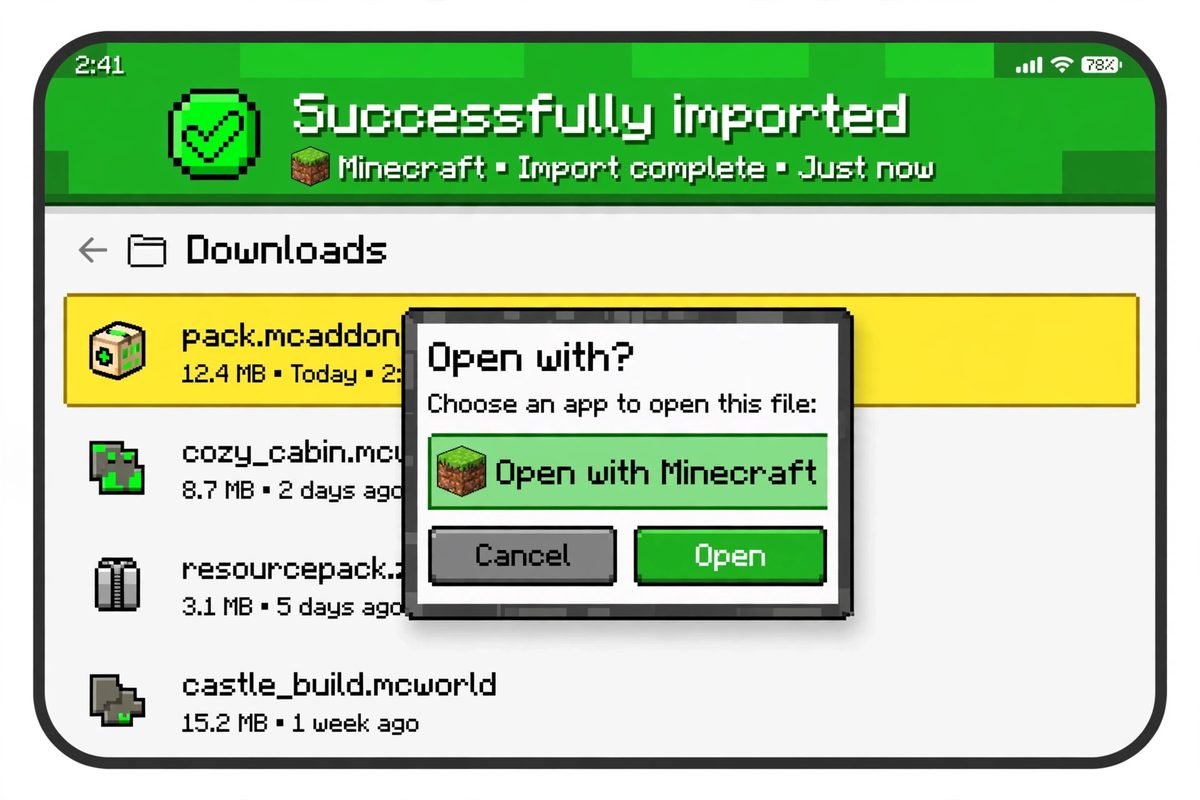
Importing only stores the add-on in your game. It does nothing to your worlds until you activate it — that is the next step, and skipping it is the number one reason players think an add-on “didn’t work.” You can check what is stored at any time in Settings → Storage, which lists your imported resource and behavior packs.
Manual method (rarely needed): an add-on delivered as loose folders — each containing a manifest.json — belongs in games/com.mojang/resource_packs or games/com.mojang/behavior_packs inside Minecraft’s storage. On modern Android versions the Android/data folder is locked down for most file managers, so the tap-to-import method above is strongly recommended instead.
How to Activate an Add-On in Your World
Activation is per-world: you choose which worlds use which add-ons.
- From the main menu, tap Play, find your world, and tap the Edit (pencil) icon — or create a new world, where the same options appear.
- Scroll to Resource Packs, open Owned (sometimes labelled “Available”), find the add-on’s resource pack, and tap Activate.
- Do the same under Behavior Packs for the add-on’s behavior pack. A proper add-on needs both halves active.
- Experiments: if the download page says the add-on needs experiments — script-based add-ons commonly require the Beta APIs toggle — open the Experiments section in the same world settings and switch on the toggles the creator names before entering the world.
- Enter the world and test: check the creative inventory (or the add-on’s own menu/item) for its new content.
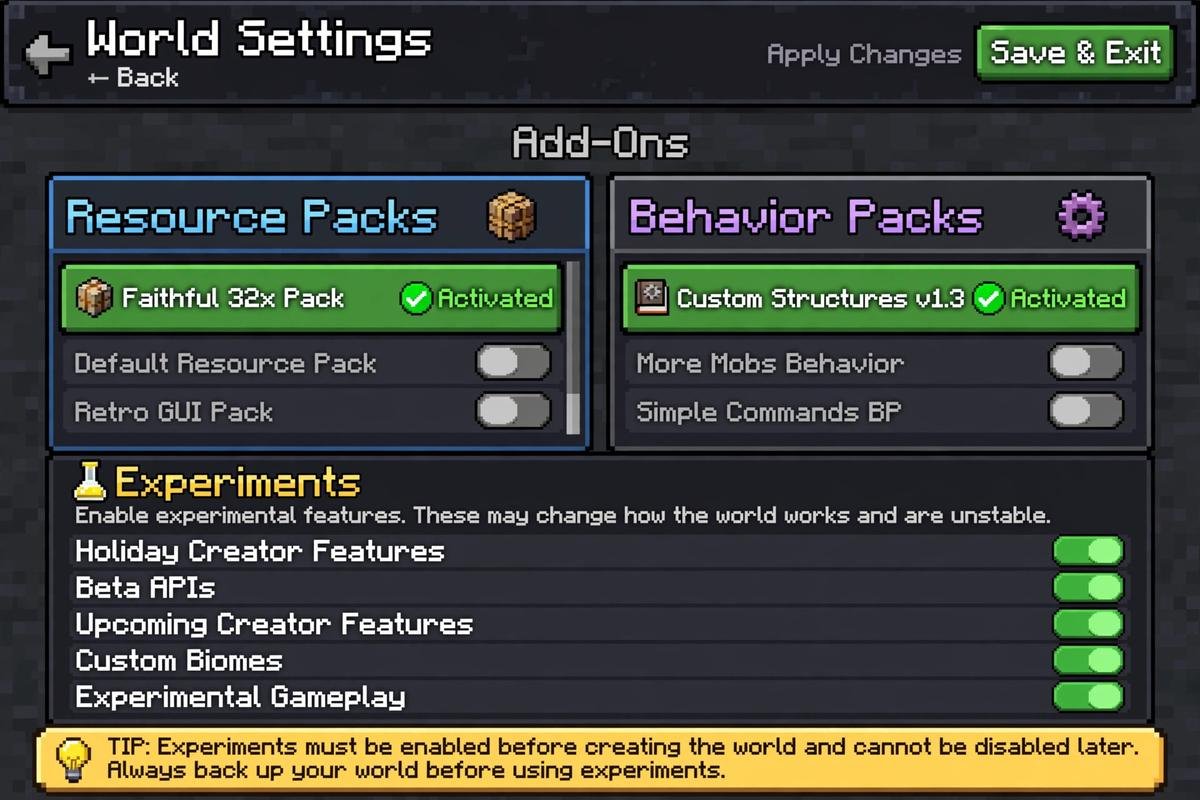
Two details that solve a lot of confusion: when several resource packs are active, the pack higher in the Active list overrides the ones below it — put the add-on whose textures matter most at the top. And if you activate an add-on on a world you care about, Minecraft will warn you about achievements and suggest playing on a copy — that warning is your cue that the backup from the checklist matters.
Add-Ons and Achievements: What Really Happens
The rule is simple: activating a behavior pack (or cheats) turns achievements off for that world, permanently — even if you deactivate the pack later, that world copy stays achievement-free. Resource packs on their own do not disable achievements, which is why pure texture and look-only packs are safe for achievement worlds; our texture packs guide covers those.
There is one exception to know about: a minority of add-ons are deliberately built and labelled “achievement friendly” or “achievements compatible” — usually packs that work within limits Mojang allows, or clever script-based designs. If keeping achievements is essential, look for that exact label on the download page and the creator’s notes; if it isn’t labelled, assume achievements will switch off. The Minecraft Wiki’s add-on article documents how the pack system works if you want the technical details.
Updating and Removing Add-Ons
Updating: download the new version of the file and import it the same way. If Minecraft complains the pack is already imported, delete the old copy first in Settings → Storage (select the pack → delete), then import the new one, and re-check that it is still active in your world’s pack lists.
Removing from a world: Edit the world → Resource Packs / Behavior Packs → select the active pack → Deactivate. The world loads without it — but remember the backup warning: blocks and items added by a behavior pack vanish from the world when it is removed, so a base built from custom blocks will have gaps.
A note on game updates: when Minecraft itself updates, older add-ons sometimes break until their creators publish a fix — that is normal in this ecosystem, and it is why version-matching from the checklist matters. Our breakdown of the latest Bedrock 26.70.20 preview shows what changes between versions, so you can see what might affect your favourite add-ons.
Troubleshooting: Common Add-On Problems
| Problem | Likely cause | Fix |
|---|---|---|
| “Import failed” or nothing happens when tapping the file | Incomplete download, or the file is really a .zip | Re-download fully; if it’s a .zip, extract the .mcpack/.mcaddon inside or rename it back to .mcaddon |
| Add-on imported but nothing new in the world | Pack stored but not activated | Edit the world and Activate both the resource and behavior packs |
| Textures work but new mobs/items are missing (or vice versa) | Only one half of the add-on is active | Activate the matching half — behavior pack for content/rules, resource pack for looks |
| Add-on features missing even though both packs are active | Required experiments are off | Enable the Experiments toggles named on the download page (often Beta APIs), then re-enter the world |
| “Duplicate pack” error on import | The same pack (or an older version) is already stored | Delete the stored copy in Settings → Storage, then import again |
| Add-on worked before, broke after a game update | Version mismatch after Minecraft updated | Check the download page for an updated file built for your game version |
| Game lags or loads slowly with an add-on on | Heavy scripts/models on a low-end phone | Test add-ons one at a time; remove the heaviest; lower render distance in video settings |
Frequently Asked Questions
Are Minecraft add-ons free?
Most community add-ons on CurseForge and MCPEDL are free, published by their creators. Marketplace add-ons are the exception — many are sold for Minecoins, though the Marketplace also has free items. Either way, the install steps are identical once you have the file.
Do add-ons work on Realms and servers?
Yes, with a condition: the world owner applies the add-on to the Realm or server world, and everyone who joins downloads the packs automatically when they connect. You cannot add an add-on to someone else’s world as a guest.
Can I add an add-on to a world I’ve already started?
Yes — activation works on existing worlds, not just new ones. Just back the world up first: behavior packs change game rules, disable achievements for that world, and removing them later deletes their custom blocks and items from your builds.
Can console players (Xbox, PlayStation, Switch) install .mcaddon files?
Not by tapping files — consoles don’t give Minecraft access to downloaded files. Console players get add-ons from the Marketplace, or join a Realm/world where the owner has already applied them from a phone or PC.
Is it safe to install add-ons from the internet?
Add-ons from established sources like CurseForge, MCPEDL, and the Marketplace are generally safe: a .mcaddon/.mcpack is data for the game, not an app that runs on your phone. The risk comes from shady download sites — avoid any “add-on” that arrives as an APK/EXE, demands a downloader app, or asks for account details.
Conclusion
Minecraft addons are Bedrock’s built-in modding system, and the whole routine becomes second nature after the first try: check the version on the download page, back up your world, tap the .mcaddon or .mcpack to import it, then activate both packs — and any required experiments — in the world’s settings. Get them from CurseForge, MCPEDL, or the Marketplace, remember that behavior packs trade away achievements in that world, and your phone can run everything from new mobs and furniture to full gameplay overhauls. Start with one small add-on in a test world, and build up from there.