How to Backup Minecraft Worlds on Android (Never Lose a World Again)
Few gaming moments hurt like opening Minecraft and finding your world gone — months of building, mining, and exploring wiped out by a corrupted update, a broken phone, or an accidental uninstall. The good news is that learning how to backup minecraft worlds on Android takes about five minutes, and once you have a routine, a lost world becomes a two-minute restore instead of a disaster. This guide covers every reliable method: the built-in .mcworld export, copying the world folders yourself, and using Realms as an off-device safety net — plus exactly how to restore each type of backup when something goes wrong.
What Counts as a Real Backup?
A real backup is a copy of your world that lives somewhere other than inside the game on the same phone. That distinction matters:
- Copy World (inside the game) duplicates a world in your world list. Useful before a risky experiment, but it still lives on the same device — if the phone dies, both copies die.
- A .mcworld export is a single packaged file you can store anywhere: cloud drive, PC, SD card, or a chat to yourself. This is a true backup.
- A copied world folder is the raw save data. Also a true backup once it leaves the phone.
Aim for at least one copy off the device. Everything below builds toward that.
Method 1: Export a World as a .mcworld File (Easiest)
The export feature is built into Bedrock Edition and needs no file manager, no cables, and no technical knowledge. A .mcworld file is simply a zipped archive of the world folder, and Minecraft can re-import it on any Bedrock device.
- Open Minecraft and tap Play.
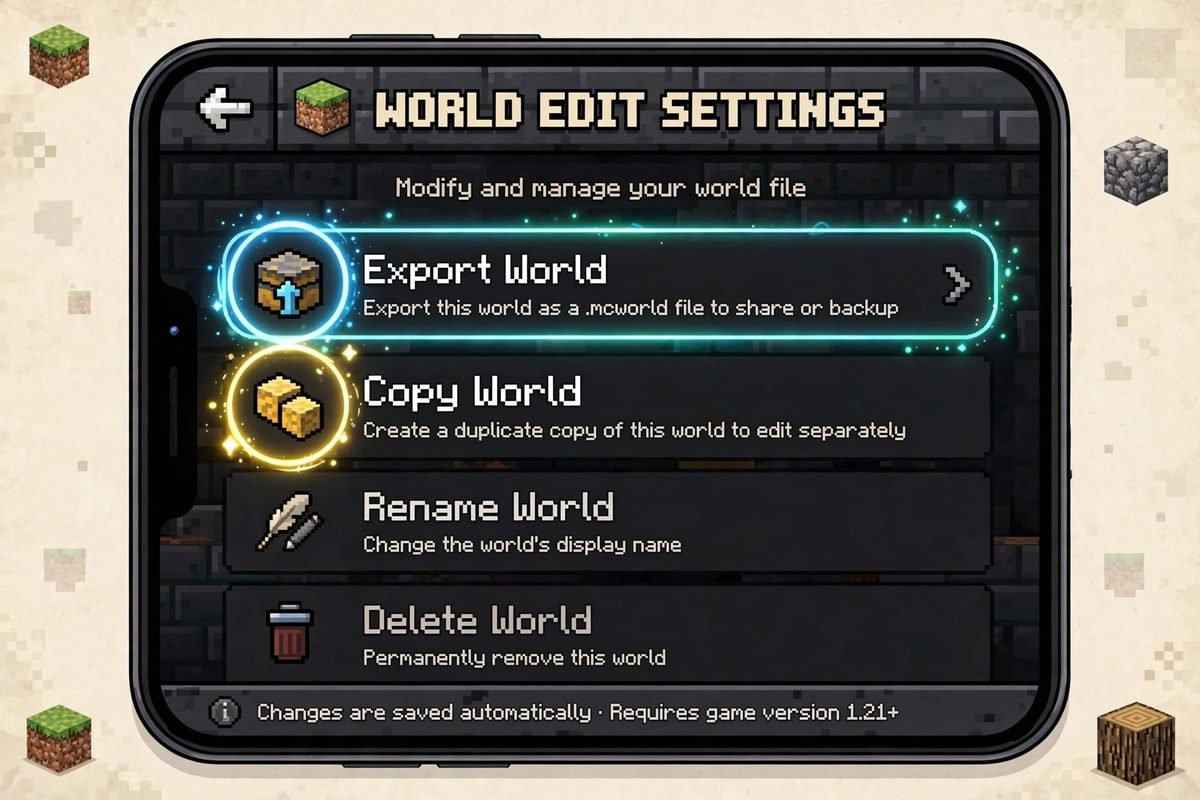
- Find the world in your list and tap the pencil (edit) icon next to it — not the world itself.
- In the world settings, scroll down the Game tab until you see Export World.
- Tap it and choose where to save or share the file. Saving it to a cloud folder (Google Drive, for example) or sending it to your PC is ideal — saving it only to the same phone’s downloads folder is better than nothing, but it is not off-device protection.
- Repeat for every world you care about. Each world exports separately.
Pro tip: Rename the exported file before storing it — something like survival-base-october.mcworld. Months later, a folder full of files called My World.mcworld tells you nothing.
Method 2: Copy the World Folder Yourself (Full Control)
Copying the folder gives you everything at once — all worlds in one operation — and it is the method to use before uninstalling the game, changing phones, or switching storage settings. First, one setting decides whether you can even see the files.
Check Your File Storage Location First
Open Settings > Storage > File Storage Location in Minecraft. There are two options, and Mojang’s own support documentation explains the difference:
- Application (default): world data is stored inside the app’s private data and is not available as individual files and folders through the file system. If your game is set to Application, a file manager will show you nothing — use Method 1 (export) instead, or switch the location (read the warning below first).
- External: world files are stored where a file manager can reach them, at this path:
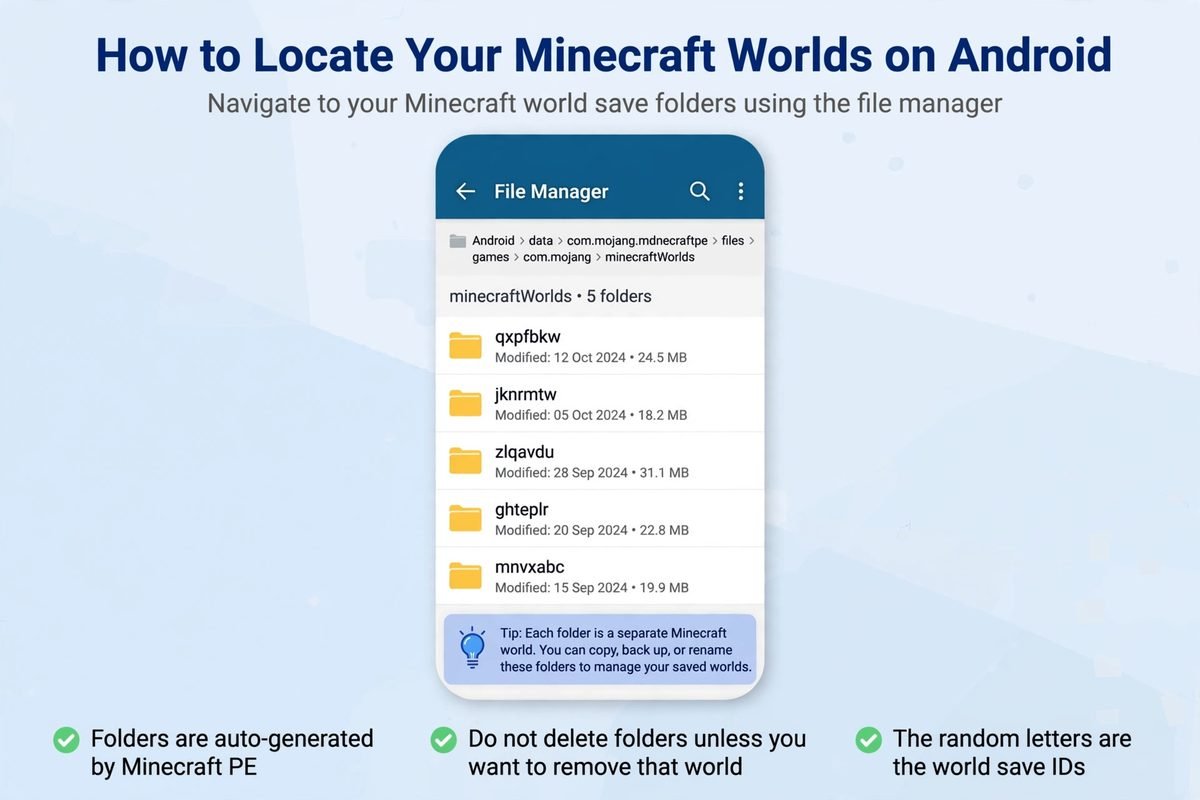
Android > data > com.mojang.minecraftpe > files > games > com.mojang > minecraftWorldsVery old installations may still hold worlds at the legacy location games/com.mojang/minecraftWorlds in the root of internal storage. If both folders exist, check which one has recently modified files — that is the live one.
Warning about switching: worlds can exist in both storage locations, and switching the setting changes which set of worlds the game displays. If you switch from Application to External and your worlds “disappear,” they have not been deleted — switch back and they return. Export your important worlds with Method 1 before changing this setting, and never uninstall the game while your only copies live in Application storage: uninstalling Minecraft deletes its app data, worlds included.
The Android 10+ Scoped Storage Problem — and the USB Workaround
Since Android 10, Google’s “scoped storage” rules restrict access to the Android/data folder. Many phones’ built-in Files apps simply cannot open it, and the folder can look empty even though your worlds are inside. You have three practical options:
- Use a file manager that supports scoped storage and grant it permission to access the folder when Android asks. Several popular file managers can request access to
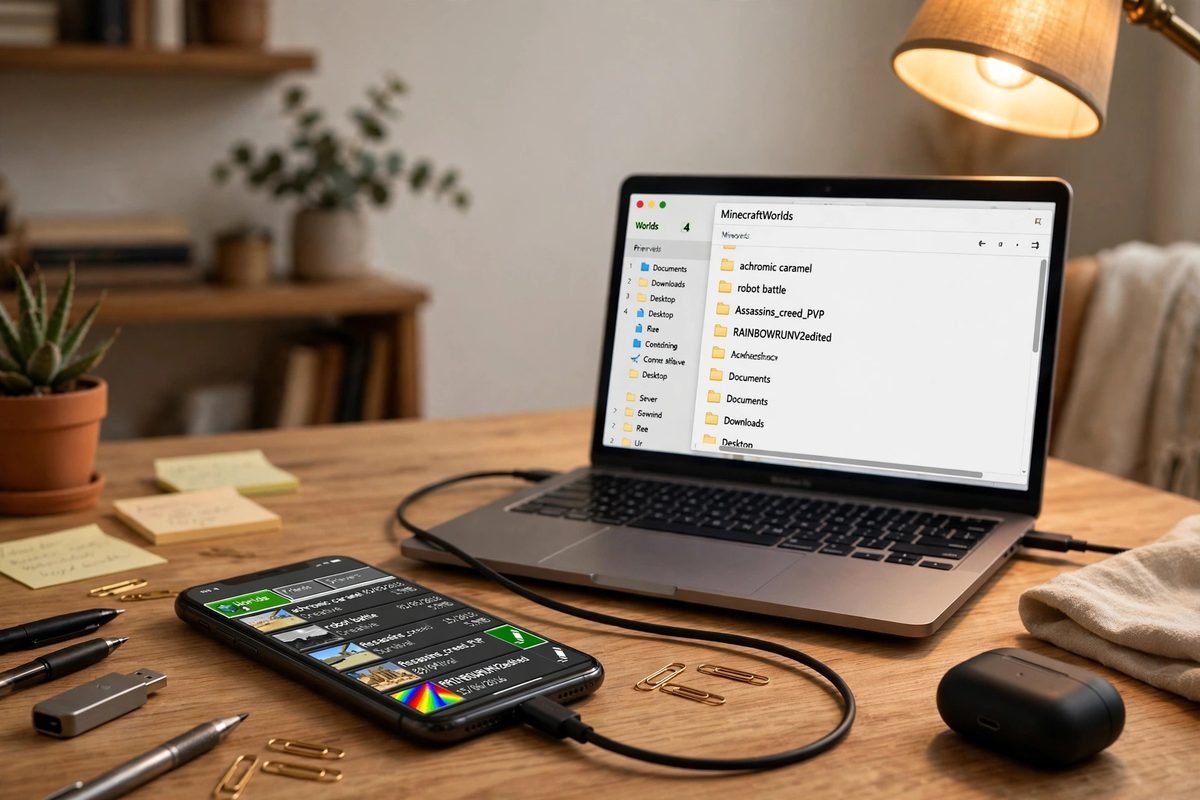
Android/dataor to the specificcom.mojang.minecraftpefolder inside it. - Connect the phone to a PC with a USB cable (this is the most reliable route). Set the USB connection to “File transfer,” then browse to the path above from the computer and copy the
minecraftWorldsfolder to your PC. - Skip the files entirely and use Method 1 exports, which sidestep the restriction completely.
Which Folder Is Which World?
Inside minecraftWorlds, every world is a folder with a random-looking name — the folder name is not your world’s name. To identify one, open the folder and read the small text file inside called levelname.txt; it contains the world’s actual name. Inside each world folder you will also see:
| File / folder | What it is |
|---|---|
level.dat | The core world file — seed, settings, and world state. A backup without this is not a backup. |
db/ | The chunk database — your terrain and builds live here. Usually the biggest part. |
levelname.txt | The world’s display name, in plain text. |
Copy the entire world folder, never just selected files, and fully close Minecraft before copying so the game is not writing data mid-copy.
Method 3: Use Realms as an Off-Device Backup
If you subscribe to Realms (or Realms Plus), your Realm gives you a built-in cloud layer:
- From the Realms list, tap the pencil icon next to your Realm.
- Choose Replace World and confirm.
- Select the local world you want to protect and wait for the upload to finish.
The world now lives on Mojang’s servers as your Realm world, and Realms keeps downloadable backups of it — if your phone is lost, sign in on a new device and download the world from the Realm’s backups. This is not a free method, and it protects one active world at a time, so treat it as a complement to .mcworld exports, not a replacement. Full details are in the official Minecraft support guide to managing data and game storage.
One more myth to clear up: on Android, signing in with a Microsoft account does not automatically upload your local worlds to the cloud (that automatic cloud saving is a console feature). On a phone, backups are your job — which is exactly why you are reading this.
How to Restore a Backup
From a .mcworld file: copy the file to the phone, tap it (or open it with a file manager and choose Minecraft). Minecraft launches and imports it automatically — you will see an “Import Started” message, and the world appears in your list within a few seconds. This works for worlds exported from any Bedrock platform, which makes .mcworld the best format for moving between phone and PC.
From a copied folder: with Minecraft fully closed, copy the world folder back into minecraftWorlds in the same storage location it came from, then reopen the game. The world should appear in the list. If it does not, the usual causes are: the folder was pasted one level too deep (the path should end minecraftWorlds > [world folder] > level.dat), the copy was incomplete, or your game’s storage location setting points at the other folder.
A Backup Routine That Actually Works
Backups fail when they depend on memory. Tie them to events instead:
| When | What to do |
|---|---|
| After a big building session | Export the world as a .mcworld |
| Before installing a new update or preview | Export every world you care about — version jumps are the classic corruption moment. (See what’s changing in the 26.70.20 preview breakdown.) |
| Before trying add-ons or mods | Export first — a broken add-on should never cost you a world. Our mods guide explains why. |
| Before uninstalling, resetting, or replacing your phone | Copy the whole minecraftWorlds folder and export .mcworld files |
| Once a month | Copy your newest backups to a second place (cloud + PC is ideal) |
Keep two copies in two different places: one on your PC or SD card, one in cloud storage. A backup that only exists on the same phone you are protecting is not a backup — it is a roommate for the original, and they will perish together.
Getting ready to download or update the game itself? Make your backups first, then grab the current version from our Pocket Edition page — and browse our general tips and tricks for more habits that keep worlds alive longer.
Frequently Asked Questions
Where exactly are Minecraft worlds stored on Android?
If your File Storage Location is set to External, worlds live in Android/data/com.mojang.minecraftpe/files/games/com.mojang/minecraftWorlds. If it is set to Application (the default), worlds are inside the app’s private data and cannot be reached with a file manager — use the in-game Export World feature instead.
Does uninstalling Minecraft delete my worlds on Android?
Yes, it can — uninstalling removes the app’s data, including worlds stored in Application storage. Always export your worlds or copy the minecraftWorlds folder somewhere safe before uninstalling or reinstalling the game.
What is a .mcworld file?
A .mcworld file is a complete world packaged as a single archive, created by the Export World button in a world’s settings. Tapping the file on any device with Bedrock Edition installed imports the world automatically. It is the easiest format for backups and for moving worlds between devices.
My worlds disappeared after I changed the storage location. Are they gone?
Almost certainly not. Worlds can exist in both storage locations, and the setting chooses which set the game shows. Change the File Storage Location back and the missing worlds should reappear. To merge the two sets, export from one location, switch, and import.
Can I move a world from Android to PC or console?
Between Android and Windows (Bedrock), yes — a .mcworld export or a copied world folder works on both. Console players can’t browse files directly, so transfer via a Realm upload instead. Java Edition uses a different world format and cannot open Bedrock worlds without third-party conversion tools.
Conclusion
Backing up is the least exciting five minutes in Minecraft and the most valuable. Export a .mcworld after big sessions, copy the minecraftWorlds folder before updates and uninstalls, keep one copy off the phone, and you will never have to start over because of a dead phone or a bad update again. Do your most important world right now — future you says thanks.