Minecraft Skins: How to Make and Install Custom Skins on Android (2026)
Steve and Alex are fine for your first world, but after a while everyone wants a character that actually looks like them. That is exactly what minecraft skins are for: a small image file that wraps around your player model and changes how you look to everyone in the game. On Android — the Bedrock edition most mobile players use — you can download a ready-made skin, draw your own, or build a character in the game’s editor — all three routes are free.
This guide covers it all, step by step: what a skin file is, where to get one safely, how to make your own, and how to import it on your phone — plus fixes for common problems like black patches and misaligned arms.
What a Minecraft Skin Actually Is
A Minecraft skin is a single PNG image that works like the paper wrapping on a gift box: a flat template — the standard size is 64×64 pixels — whose different areas map to your head, torso, arms, and legs. When the game wraps it around the player model, the flat pixels become your character.
Three things are worth knowing before you download or draw anything:
- Base layer and overlay layer. Modern skins have two layers: the base layer is the body itself, and the overlay sits slightly above it for hair volume, jacket details, glasses, and other 3D-looking extras. If a skin looks “flat,” it usually only uses the base layer.
- Classic vs Slim models. Classic (sometimes labelled “Wide”) is the Steve shape with 4-pixel-wide arms; Slim is the Alex shape with 3-pixel-wide arms. The same template handles both, but pick the matching model when you import, or the arms will look misaligned.
- Bedrock also accepts HD skins. Its 128×128 templates allow finer detail. Most community skins are 64×64, and that is the safest choice if you are not sure — a normal 64×64 skin always works.
One warning: a skin file looks like a strange little grid of disconnected body parts in your gallery. That is normal — never crop, resize, filter, or screenshot it, or the game will reject the file or wrap it incorrectly.
Skins, Texture Packs, and the Character Creator: What’s the Difference?
Players mix these three up constantly:
| Customization | What it changes | How you get it |
|---|---|---|
| Skin | Only your own character’s appearance | Import a PNG, install a skin pack, or use a downloaded skin |
| Texture / resource pack | How blocks, items, and the whole world look | Installed as a .mcpack — see our guide to the best Minecraft texture packs |
| Character Creator | Your character, built from in-game body parts and clothing items | Inside the Dressing Room; some items are free, some cost Minecoins |
| Add-ons and mods | Gameplay itself — new mobs, items, mechanics | Covered in our Minecraft mods guide |
This article covers the first and third rows — skins. To change how the world looks rather than how you look, you want a texture pack instead.
What You Need Before You Start
- Minecraft Bedrock installed and updated on your Android phone or tablet. (If you still need the game itself, our Minecraft Pocket Edition page explains your options.)
- Your skin as a .png file saved somewhere your phone can reach — the Downloads folder is easiest.
- A few minutes. The import itself takes under a minute once the file is ready.
Never give a skin website or app your Microsoft account password — legitimate skin tools only ever hand you an image file, and any site that asks for a password is not part of the process.
Option 1: Download a Ready-Made Skin
The fastest route is a skin someone else has already made. Tens of thousands of free designs exist, from superheroes and anime characters to knights, robots, and animals.
The Skindex (minecraftskins.com) is the largest community library: search by keyword, open a skin, edit it in their browser editor if you want, and press Download for the PNG. Nova Skin has a similar gallery plus an editor with pre-made parts. Planet Minecraft hosts skins alongside its PMCSkin3D editor.
Whichever site you use, follow the same routine:
- Find the skin and check the preview from the front and back — a lot of skins only look finished from the front.
- Use the site’s own Download button and save the file. A real skin download is a small PNG, usually only a few kilobytes.
- If the page tries to send you through several “download” buttons, pop-ups, or asks you to install an app or an “unlocker,” back out. That is an ad trap, not the skin. The real file is always just an image.
Option 2: Make Your Own Skin
Making your own is more satisfying than it sounds: modern editors show a live 3D preview while you paint, so you need no artistic training to get a decent result.
On a phone, Skinseed (free on Google Play) is the most popular dedicated app. It includes an editor, a large searchable library of community skins you can use as a starting point, 3D previews, and one-touch export for Pocket Edition — ideal for tweaking an existing design rather than drawing every pixel yourself.
In a browser, The Skindex editor and Nova Skin are the beginner-friendly picks: paint body part by body part and rotate the 3D model to check your work. PMCSkin3D (Planet Minecraft) and Blockbench are the step up for detailed work.
A few design tips that make a real difference:
- Paint the base layer completely. Leave no transparent holes — in Bedrock, empty areas can render as black patches in game.
- Use the overlay layer for depth. Hair that sits above the head, a jacket over a shirt, or armour trim reads much better on the overlay than painted flat.
- Shade, don’t just fill. Two or three close shades of one colour, darker at the edges, looks dramatically better than one flat colour.
- Check the back and the tops of the head and arms. These are the areas everyone forgets — and exactly what other players see in multiplayer.
- Match the model. Decide Classic or Slim before you start, and use an editor template for that model, so the arms line up.

When you are happy, export the result as a PNG. In Skinseed, use the export option for Minecraft PE; in browser editors, use Download/Save to File.
Option 3: Build a Character in the Dressing Room
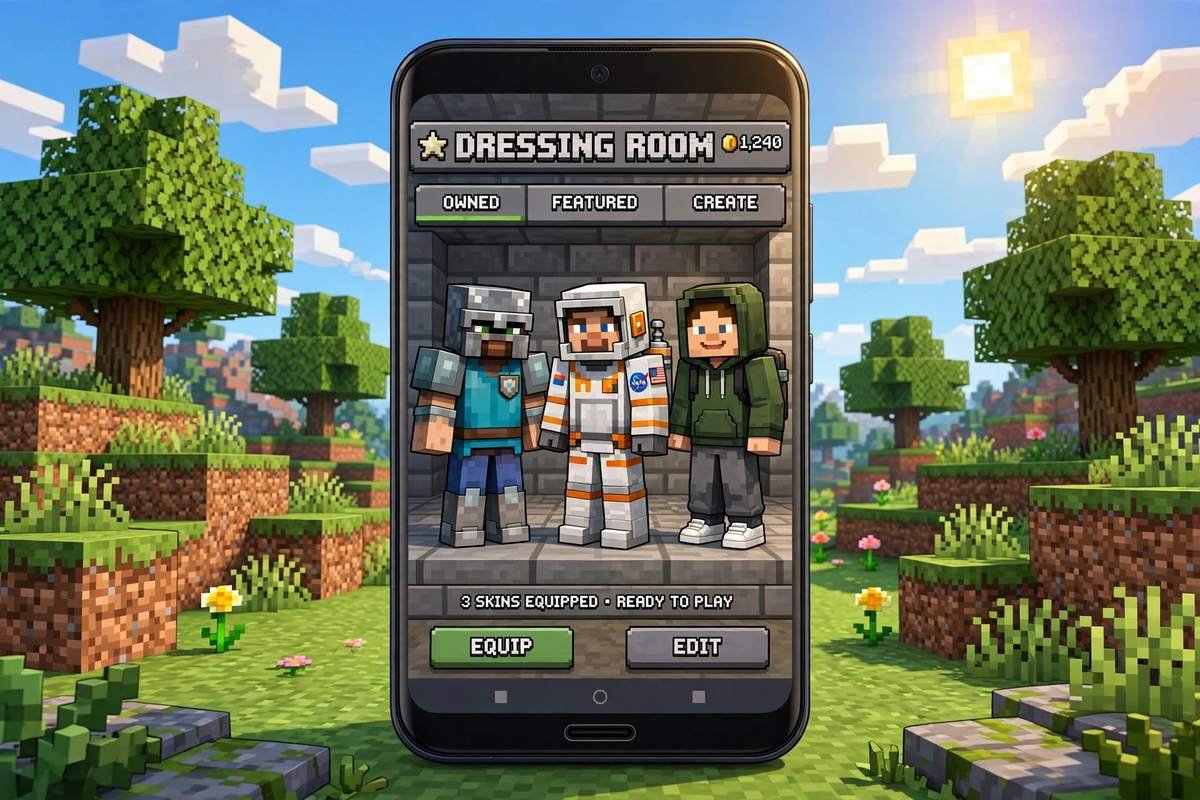
If you do not want to deal with files at all, open Minecraft, tap Dressing Room, and choose Character instead of Classic Skins. The Character Creator lets you assemble a player from body shapes, skin tones, hairstyles, eyes, tops, bottoms, and outerwear.
Some pieces are free and some cost Minecoins. Everything is official and works everywhere, including consoles — but you can only build from the parts provided. For a truly one-of-a-kind look, use a classic skin (Options 1 and 2); for zero fuss, use the Character Creator.
How to Install a Skin on Android (PNG Import)
This is the core process, and it works in the current Bedrock version on Android:
- Save the skin PNG to your phone. Downloads from a browser land in the Downloads folder. If you made the skin in an app, use its export/save option and confirm the result is a PNG.
- Open Minecraft and tap Dressing Room on the main menu.
- Select the character slot you want to change and tap Edit Character (or create a new character).
- Go to the Classic Skins tab. (Do not choose “Character” — that opens the Character Creator instead.)
- Open Owned Skins and tap Import, then Choose New Skin.
- Pick your PNG in the file picker. If Android asks Minecraft for permission to access photos and files, allow it — without it your downloaded skin may not appear in the list.
- Choose the model: Classic for standard skins, Slim if the skin was designed with narrow arms.
- Confirm, return to the Dressing Room, and make sure the skin is equipped.

Now start a world or join a server and switch to third-person view (or open your inventory) to check the result. If the arms look wrong, you almost certainly picked the wrong model — re-import and choose the other one; you do not need a different file.
Installing a Skin Pack (.mcpack)
Skins also come as skin packs in .mcpack format — one file holding several skins. Installing one is even simpler:
- Download the .mcpack file.
- Open your file manager, go to Downloads, and tap the file. Choose Minecraft if asked which app should open it.
- Minecraft launches and shows an “Import started” and then “Successfully imported” message.
- Open the Dressing Room → Classic Skins. The pack now appears under your owned skins, and you can equip any skin inside it.
Where Your Skin Shows — and Where It Doesn’t
An imported skin is attached to your character: it follows you into your own worlds, Realms, and most multiplayer servers, syncing through your Microsoft account. That sync is also the workaround for the one big limitation: consoles (Xbox, PlayStation, Switch) cannot import PNG files directly, because they do not give the game file-system access. Console players either use Marketplace skins and the Character Creator, or import on a phone or PC signed into the same account and let it sync across.
Two multiplayer notes: some servers restrict skins or force their own for events — the server’s choice, not a problem with your file. And if friends still see Steve or Alex, you are usually offline or still syncing — reconnect and give it a moment.
Troubleshooting: Common Skin Problems and Fixes
| Problem | Likely cause | Fix |
|---|---|---|
| Skin imports but arms look broken or offset | Wrong model selected | Re-import and pick the other model (Classic ↔ Slim) |
| Black patches on the character | Transparent holes in the base layer | Open the skin in an editor, paint the base layer fully, re-import |
| Skin file doesn’t appear in the picker | File in the wrong folder, or Minecraft lacks file permission | Move the PNG to Downloads; allow Minecraft access to photos/files in Android settings |
| The game rejects the file | It isn’t a real skin PNG (wrong size, edited screenshot, JPG) | Re-download the original PNG from the source; never use a screenshot of a skin |
| Skin works in your world but not on a server | Server restricts custom skins | Nothing to fix — use the skin in your own worlds, or the server’s allowed skins there |
| Old skin keeps showing after importing a new one | Game cache / skin not equipped | Make sure the new skin is actually equipped in the Dressing Room, then restart Minecraft |
| Skin looks blurry | Low-quality or resized source image | Use an original 64×64 (or 128×128 HD) file, not an enlarged copy |
More general fixes for crashes and performance while you customize your game are collected on our tips and tricks page.
Staying Safe While Downloading Skins
Skins are among the safest Minecraft downloads — the file is just an image — but keep to three rules:
- A skin is a PNG, nothing else. If a “skin” download is an APK, an EXE, or a browser extension, delete it.
- Never type your Microsoft password into a skin site or app. The workflow is only: site gives you a file, you import the file.
- Respect the artist and the server. Re-uploading someone else’s work as your own, or wearing offensive designs on family-friendly servers, can breach Minecraft’s community standards. The Minecraft Wiki’s skin article covers the rules.
Frequently Asked Questions
Are custom Minecraft skins free?
Yes. Community skins, online editors, importing your own PNG, and Skinseed’s core features are all free. Only optional extras cost money — some Character Creator items and Marketplace skin packs are sold for Minecoins. The import process never requires a payment.
Can I use a Java Edition skin in Bedrock on Android?
In almost all cases, yes. Java and Bedrock share the same 64×64 template and Classic/Slim models, so a standard Java skin PNG imports into Bedrock without conversion. Very old 64×32 “legacy” skins are the exception — their legs may need fixing in an editor first.
Why does my skin have black or missing parts in game?
This almost always means the base layer of the template has transparent (empty) pixels, which Bedrock renders as black. Open the file in an editor, fill the base layer completely with your design, keep transparency only on the overlay layer, and import it again.
Can I import a PNG skin on Xbox, PlayStation, or Switch?
Not directly — consoles don’t let Minecraft browse device files. Import the skin on Android or PC while signed into the same Microsoft account and it will sync to your console, or use Marketplace skins and the Character Creator, which work on every platform.
Do custom skins work offline?
Once a skin is imported and equipped, it is stored on your device and displays in your own worlds offline. In multiplayer, other players can only see it when you’re connected, and servers may apply their own skin rules regardless.
Conclusion
Changing your skin is the quickest way to make Minecraft feel like your game, and on Android it takes about a minute: get a proper 64×64 PNG — from The Skindex or Nova Skin, or drawn by you in Skinseed — then import it through Dressing Room → Classic Skins → Owned → Import, pick Classic or Slim, and play. Keep the base layer fully painted, never hand your account password to a skin site, and remember a skin only changes how you look — pair it with a texture pack to change the world, or add-ons to change the gameplay.