How to Change Resolution in Minecraft on Mobile & PC (Best Settings, No Lag)
If you have been searching for how to change resolution in Minecraft, you have probably noticed something frustrating: on most versions of the game, there is no simple “Resolution” menu like the one in other games. That is not because you missed it. Minecraft handles resolution differently depending on whether you play Bedrock on a phone, Bedrock on Windows, or Java Edition — and in the newest versions, the control that actually changes your render resolution hides inside the Vibrant Visuals options instead.
This guide shows you exactly where the real resolution controls are on every platform, how to use them, and which settings to pair them with so you get a sharper picture without the lag.
First, Know This: Minecraft Handles Resolution Differently
Two different things get called “resolution,” and mixing them up is why most players get stuck.
Display resolution is the size of the image your screen shows — 1920×1080 on a typical monitor, or whatever your phone’s panel runs at. Render resolution is the size at which the game actually draws the 3D world before stretching it to fit your screen. Render resolution is what affects sharpness and frame rate. A game rendering at 70% and upscaling to your full screen looks slightly softer but runs much faster.
Bedrock Edition (phones, tablets, consoles, and the Windows store version) renders at your device’s display resolution by default, which is why there is no classic resolution list in its settings. Java Edition is the exception: it has an explicit fullscreen resolution control. On Bedrock, the tools that change your effective render resolution are the Vibrant Visuals Resolution slider, your render distance, and your graphics mode — and those are what the next sections cover.
One more thing players confuse with resolution: GUI Scale. That setting only changes the size of buttons, text, and the hotbar. It does nothing to the 3D world. If the game itself looks blurry, GUI Scale is not the fix.
How to Change Resolution in Minecraft on Mobile (Bedrock)
Let’s be honest up front, because most guides are not: in standard Bedrock graphics mode on Android and iOS, there is no resolution slider. The game renders at your phone’s native panel resolution. But you do have real controls — they just live in different places.
Method 1: The Vibrant Visuals Resolution Slider (Newest Versions)
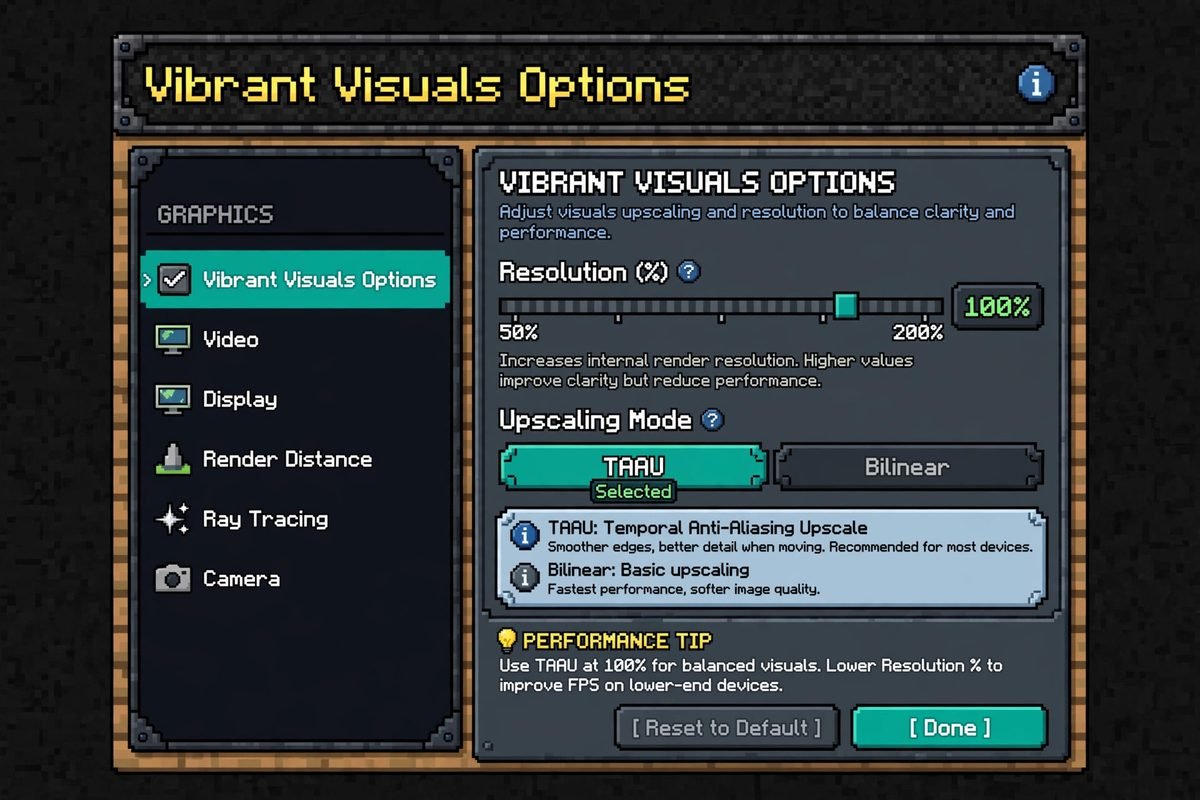
On supported devices, Bedrock’s Vibrant Visuals graphics mode includes a genuine render-resolution control:
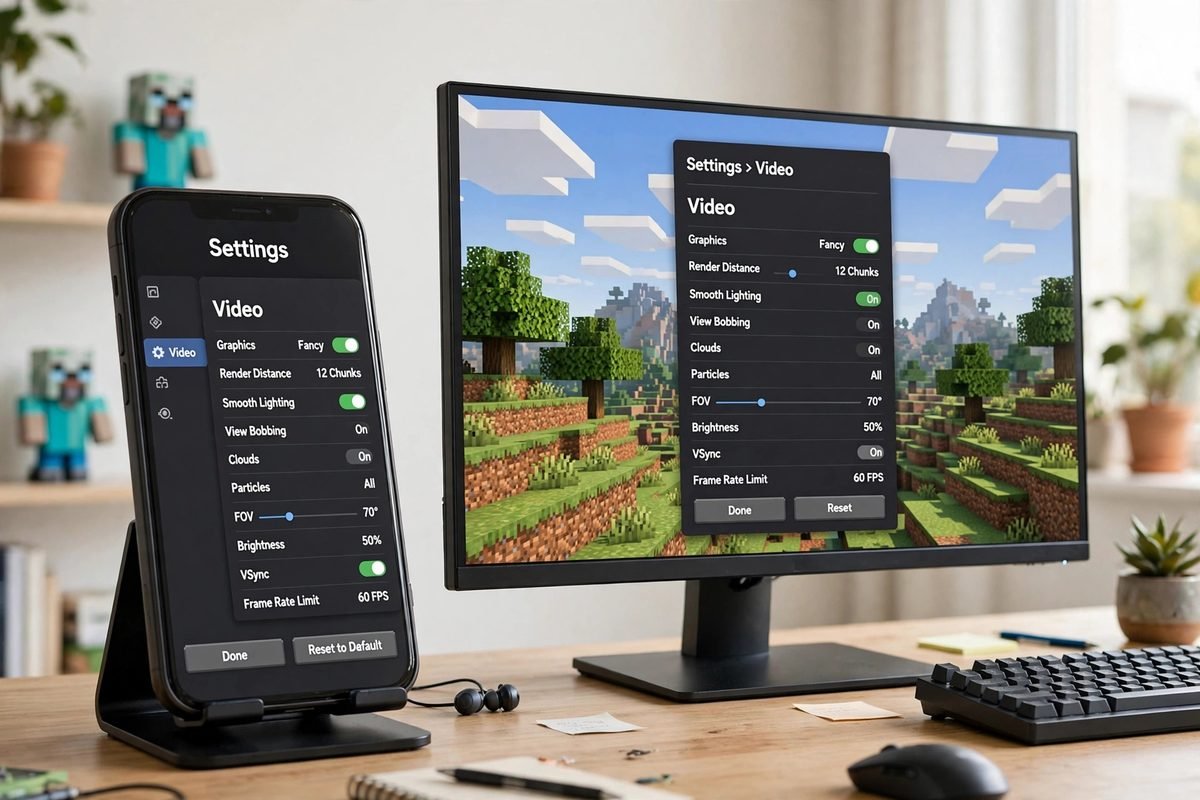
- Open Settings and tap the Video tab.
- Find the Graphics Mode drop-down and select Vibrant Visuals.
- Scroll down and expand Vibrant Visuals Options.
- Lower the Resolution slider (for example, to 70–80%). The world now renders at that percentage of your screen resolution.
- Set Upscaling to Bilinear for the cheapest performance cost, or TAAU if your device handles it and you want a cleaner image.
Dropping the Resolution slider is the single most effective way to stop lag on a phone running Vibrant Visuals, because every other effect in that mode — shadows, fog, reflections — gets cheaper at the same time. Mojang publishes the minimum hardware for Vibrant Visuals on its official Vibrant Visuals page: on Android you need an Adreno 640, Mali-G68, Mali-G77, or Xclipse 530 GPU or better, and on iOS an A12 or M1 chip or better. If your device is below that line, Vibrant Visuals will not appear in your settings at all — use Method 2 instead.
Method 2: Render Distance and Graphics Mode (Works on Every Phone)
Render distance does not change resolution, but it changes how much world the game draws, which has the same effect on smoothness:
- Go to Settings → Video and set Render Distance to 8–12 chunks on a mid-range phone, or 6–8 on a budget device.
- If your device offers the Graphics choice between Simple and Fancy (wording varies by version), choose Simple when the game stutters. Fancy adds transparent leaves and prettier water at a real frame-rate cost.
- The Favor Performance preset in Video settings applies a sensible bundle of these tweaks in one tap.
Method 3: Your Phone’s Own Display Setting
Some Android phones — Samsung Galaxy models are the common example — let you lower the system screen resolution under Settings → Display → Screen resolution. Because Bedrock renders at panel resolution, lowering it there lowers the game’s render load everywhere. iPhones do not offer this option. Only use this if you are comfortable with your whole phone looking slightly softer, not just Minecraft.
If your main problem is that menus and buttons look tiny or huge, that is the one case where GUI Scale (in the same Video tab) is the right setting to touch. For general performance help on Android, our Pocket Edition page covers device requirements in more detail.
How to Change Resolution in Minecraft Bedrock on Windows
The Windows version of Bedrock gives you a few more levers:
- Match your monitor first. Set Windows itself to your monitor’s native resolution (right-click the desktop → Display settings). Bedrock fullscreen follows the Windows desktop resolution, so a mismatch here is the top cause of a stretched or soft image.
- Use the in-game Fullscreen toggle. In Settings → Video, turn Fullscreen on. Pressing F11 also toggles fullscreen in the Windows app.
- Check the Advanced Video Settings. In the Video tab you will find FOV, Render Distance, and Anti-Aliasing. Anti-aliasing smooths jagged edges at a GPU cost — lower it before you touch anything else if edges look fine but frames drop.
- Use the Vibrant Visuals Resolution and Upscaling controls. On Windows, Bedrock’s real render-resolution controls are the same ones as on mobile: switch Graphics Mode to Vibrant Visuals, then lower the Resolution slider in Vibrant Visuals Options and set Upscaling Mode to TAAU or Bilinear — the game renders lower and upscales sharper. Start at 75–90%: near-native sharpness with a real FPS gain. One naming trap to avoid: plenty of guides claim Bedrock offers DLSS or FSR upscaling. It doesn’t — FSR has never shipped in Bedrock, and DLSS only ever existed in the old RTX graphics path, not in Vibrant Visuals (both are still open feature requests as of October 2026). If a menu doesn’t show them, nothing is wrong with your install.
How to Change Resolution in Java Edition (PC & Mac)
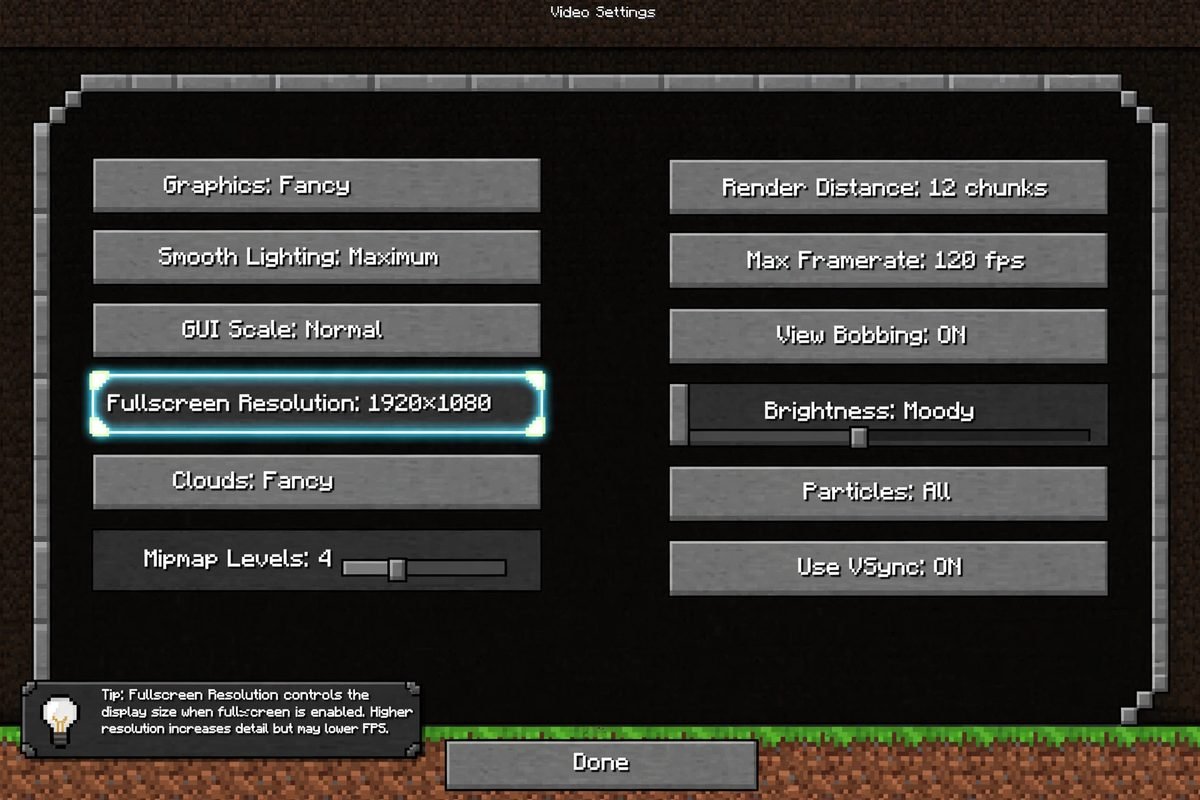
Java Edition is the one version with a true, classic resolution setting — it just has two of them, for fullscreen and for windowed play.
Fullscreen Resolution
- From the main menu, open Options → Video Settings.
- Click the Fullscreen Resolution control to cycle through the resolutions your monitor supports, and pick the one you want — ideally your monitor’s native resolution.
- Make sure Fullscreen is set to ON in the same menu.
While playing, F11 toggles fullscreen on and off on Windows and Linux (try Fn + F11 on laptops). On a Mac, the system fullscreen shortcut is Control + Command + F; F11 by itself usually triggers “Show Desktop” unless you have remapped it in macOS settings.
Windowed Resolution (Set in the Launcher)
If you prefer playing in a window — for streaming, or a second monitor — set its exact size before the game even starts:
- Open the Minecraft Launcher and go to the Installations tab.
- Hover over your installation, click the … menu, and choose Edit.
- In the Resolution fields, type a width and height (for example, 1280 × 720).
- Save, and launch. The game window now opens at exactly that size every time.
A smaller window genuinely helps a weak PC: a 1280×720 window has well under half the pixels of a 1920×1080 fullscreen image, so the GPU does far less work per frame.
Best Minecraft Settings to Fix Lag (By Device)
Resolution works best alongside the right supporting settings. Use this table as a starting point, then adjust one thing at a time:
| Setting | Budget phone | Mid-range phone / laptop | Strong PC |
|---|---|---|---|
| Render Distance | 6–8 chunks | 10–12 chunks | 16+ chunks |
| Graphics Mode | Simple / Favor Performance | Fancy or Vibrant Visuals | Vibrant Visuals / Favor Visuals |
| VV Resolution slider | 60–70% (if available) | 75–85% | 90–100% |
| Upscaling | Bilinear | Bilinear or TAAU | TAAU |
| FOV | Default (70) | Default (70) | Personal preference |
| Max Framerate | 30–60 FPS cap | Match screen refresh | Match monitor refresh |
Two honest warnings about this table. First, on Realms and multiplayer servers, the server can cap your render distance below what your device could handle — if the slider stops early, that is the server, not your phone. Second, high-resolution texture packs are a separate thing from screen resolution: a 64× or 128× pack makes blocks look crisper up close but costs performance, and it will not fix a blurry game. Our guide to the best Minecraft texture packs explains pack resolutions properly.
More general ways to keep a phone world running smoothly are collected on our tips and tricks page.
Troubleshooting: Blurry, Stretched, or Black Bars
The game looks blurry everywhere. Your render scale is too low. Raise the Vibrant Visuals Resolution slider (or the PC upscale percentage) in steps of 10% until text and block edges look clean, and re-check that Windows is set to your monitor’s native resolution.
Black bars or a stretched picture. The game’s fullscreen resolution does not match your monitor’s aspect ratio. On Java, set Fullscreen Resolution to a value with the same shape as your screen (1920×1080 for a standard widescreen monitor). On Windows Bedrock, fix it in Windows Display settings — the game follows the desktop.
Settings look greyed out or capped. On servers and Realms, some video limits come from the host. In split-screen on console, Vibrant Visuals turns itself off and the game falls back to Fancy or Simple rendering — that is expected behavior, not a bug.
Changing settings did nothing. Restart the game after big graphics-mode changes, and make sure you changed render resolution — not GUI Scale, which only resizes the interface.
FAQ
Does Minecraft on mobile have a resolution setting?
Not a classic one. In standard graphics mode, Bedrock on Android and iOS renders at your phone’s native resolution. The real render-resolution control is the Resolution slider inside Vibrant Visuals Options (Settings → Video → Graphics Mode → Vibrant Visuals) on supported devices. On any phone, lowering render distance is the most reliable way to trade a little view distance for a smoother game.
Why does Minecraft look blurry on my PC?
Usually because an upscaling or render-scale setting is low, or because Windows is not running at your monitor’s native resolution. Check Windows Display settings first, then raise the in-game Resolution/upscale percentage. Also confirm you didn’t lower GUI Scale by mistake — that shrinks the interface, not the world.
Does lowering the resolution increase FPS?
Yes. Render resolution is one of the biggest performance levers in the game, alongside render distance. Dropping to 70–80% render scale and letting the upscaler rebuild the image typically gives a large frame-rate gain with only a small softness cost, especially on phones using Vibrant Visuals.
What is the best resolution setting for Minecraft on a phone?
Leave the game at your phone’s native resolution and, if you use Vibrant Visuals, start with the Resolution slider at 80% and Bilinear upscaling. If the game still stutters, drop render distance to 8–10 chunks before lowering the slider further — the world stays sharp, you just see a little less of it.
How do I make Minecraft fullscreen?
On Java Edition, press F11 or set Fullscreen to ON in Options → Video Settings (on Mac, use Control + Command + F). On Bedrock for Windows, use the Fullscreen toggle in Settings → Video, or F11. On phones and consoles, the game is fullscreen by design.
Conclusion
There is no single “resolution button” in Minecraft — but once you know where each edition hides its controls, you have more power than a simple menu would give you. Java players get a true Fullscreen Resolution setting and launcher window sizes. Bedrock players on Windows should match their desktop resolution and use the advanced video options. And on mobile, the Vibrant Visuals Resolution slider plus a sensible render distance will fix both the blur and the lag for most players. Change one setting at a time, test for a minute, and keep the combination your device handles best.